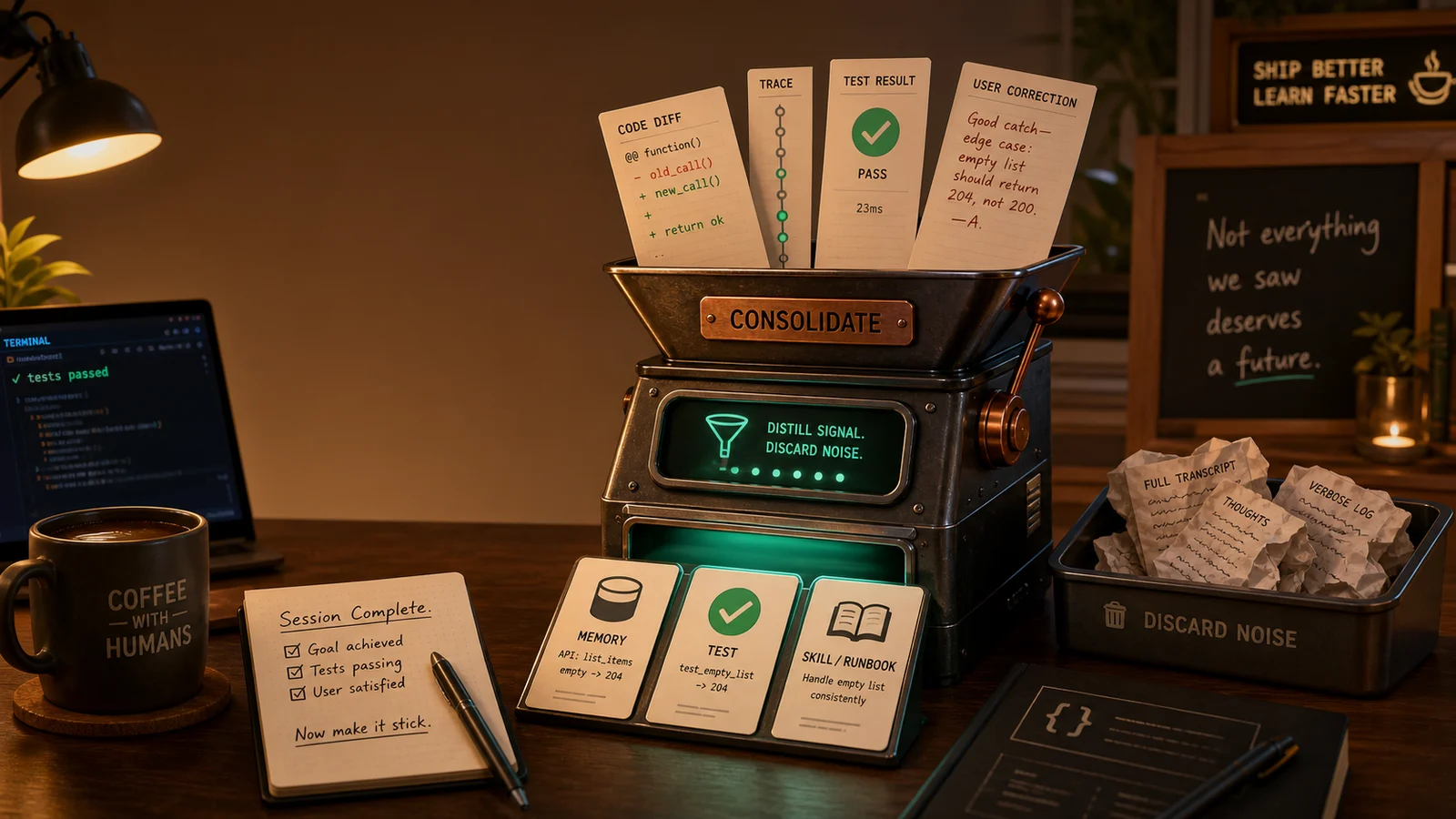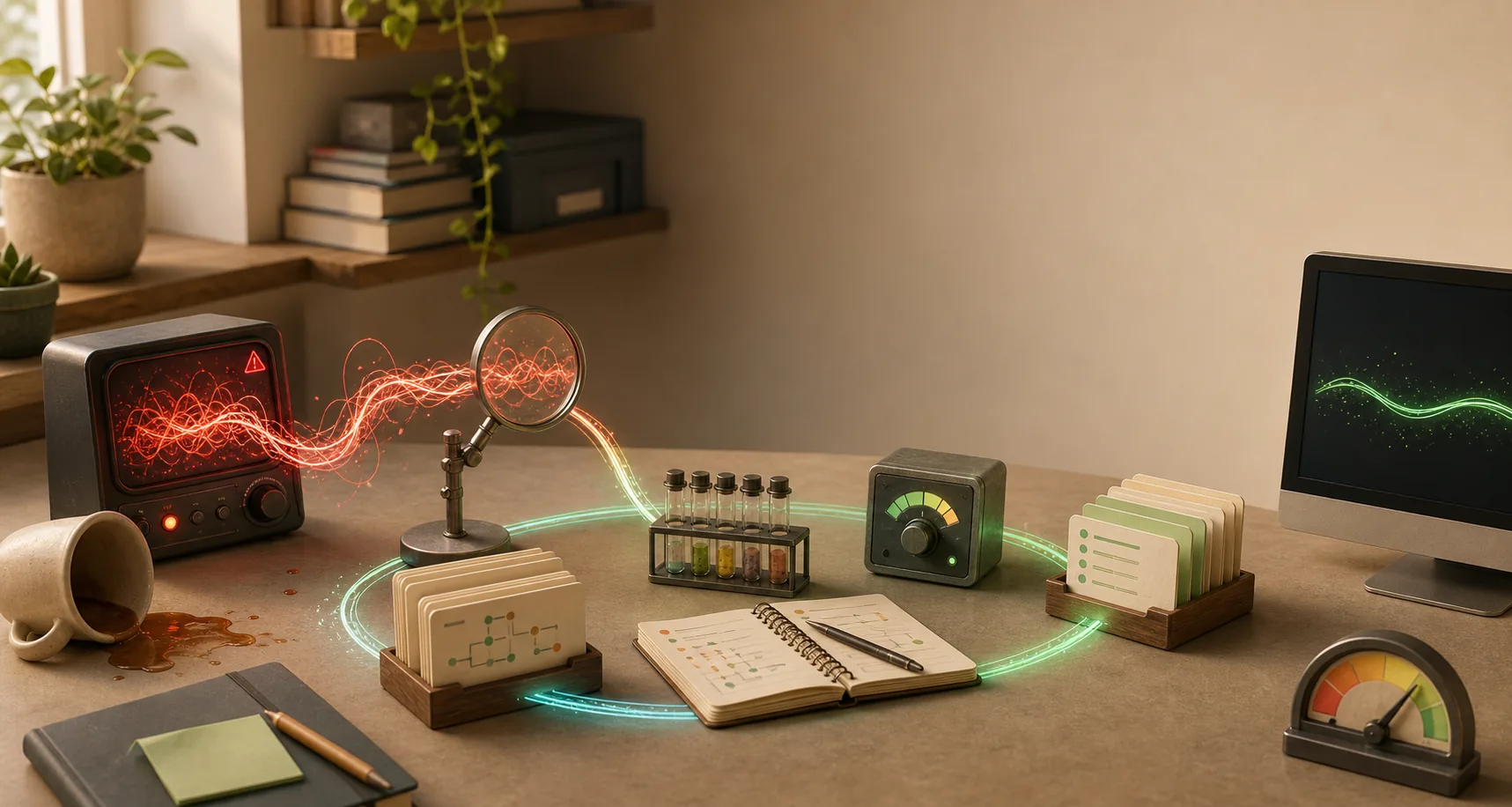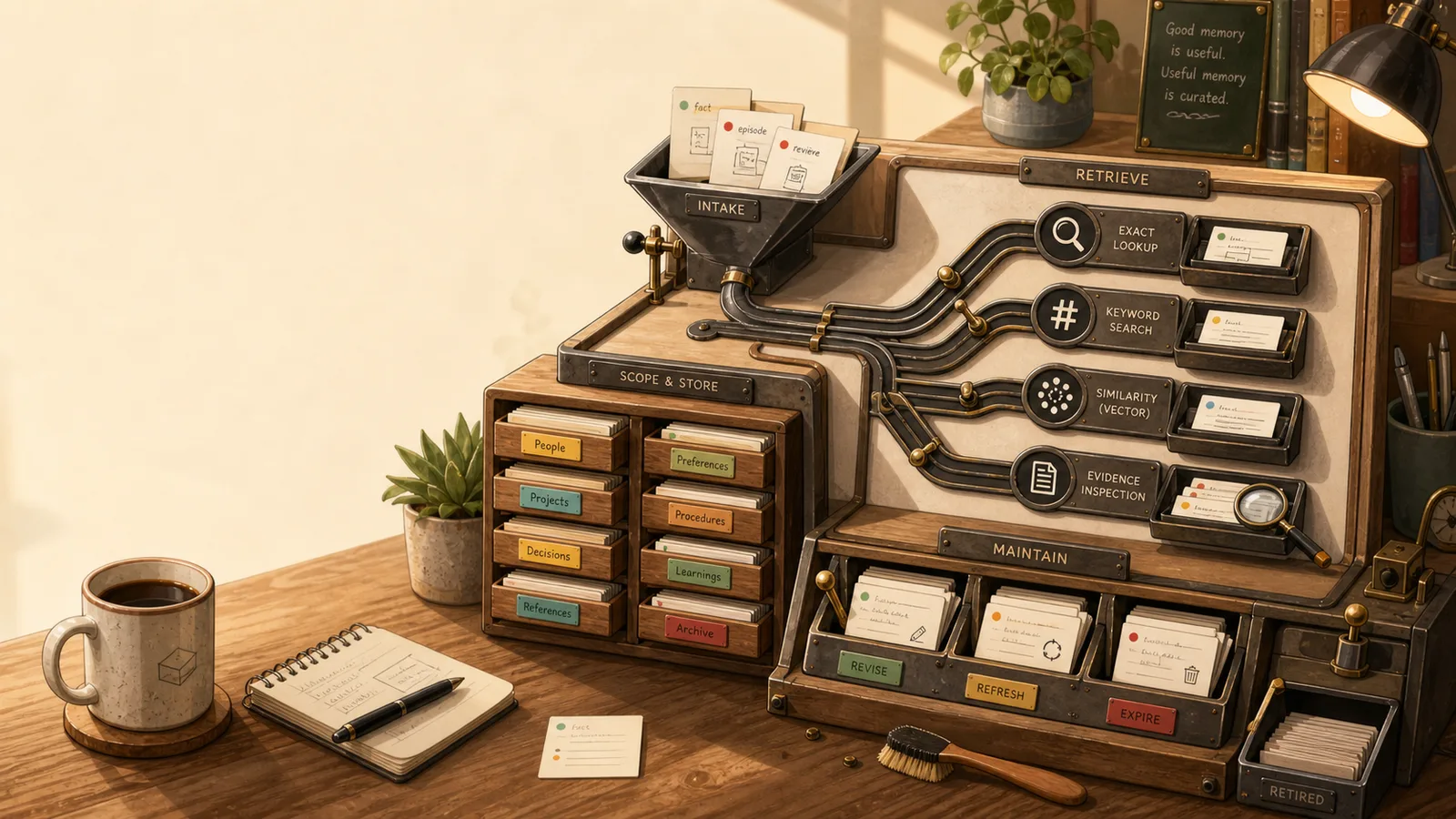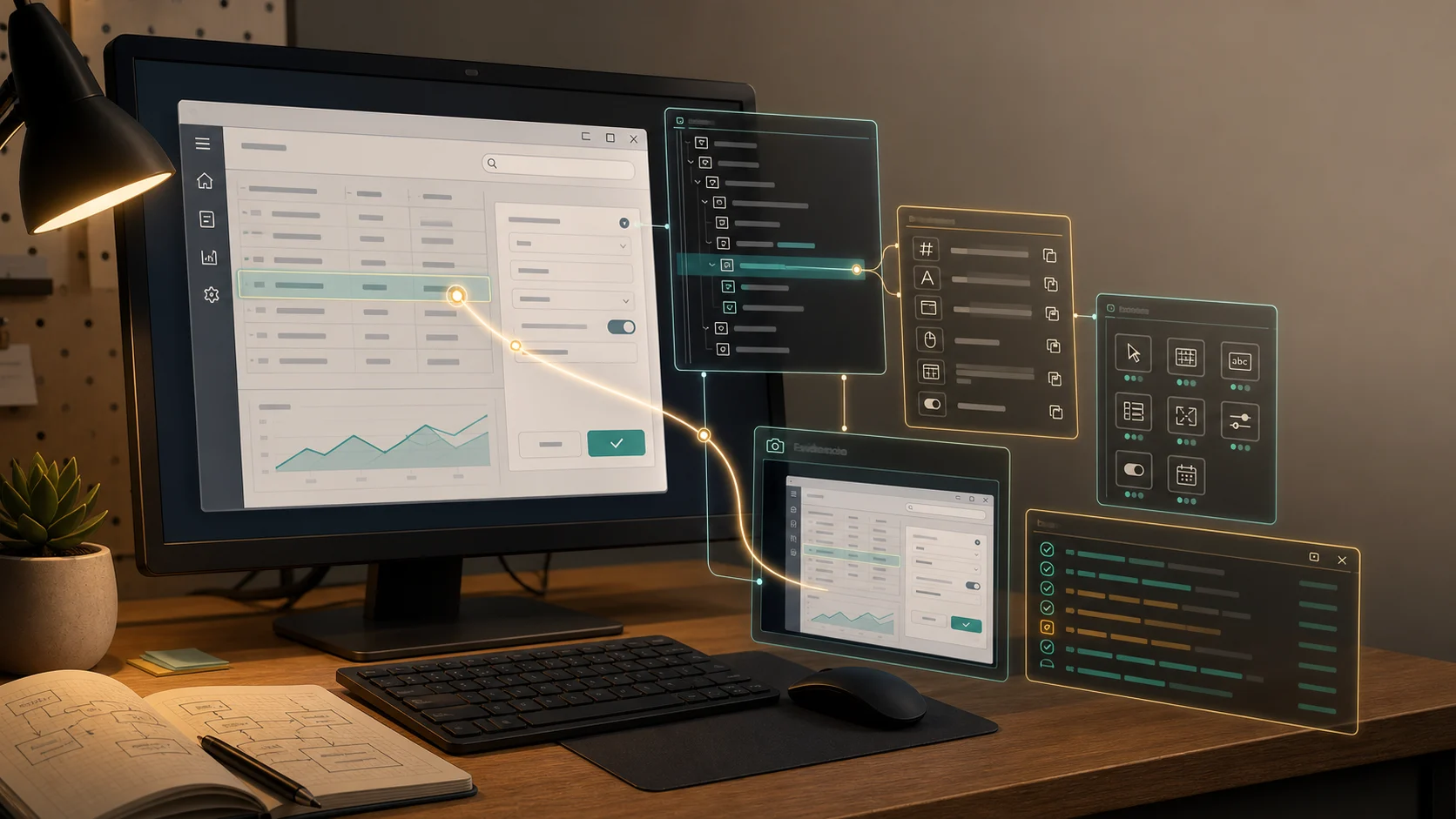
The wrong mental picture is an AI agent moving the mouse on your machine while everyone watches nervously.
That might make a memorable demo. It is also exactly the thing most teams do not want for user acceptance testing. UAT automation should run in the background. It should not hijack a developer’s desktop, click through someone’s live session, or turn release confidence into an anxious spectator sport.
For Windows desktop applications, the better picture is quieter: an isolated test worker launches the app, automation tools inspect and operate the UI, deterministic checks read product state, screenshots and recordings are captured as evidence, and the AI agent sits outside that environment as planner, analyst, and verdict writer.
In other words: headless UAT agents need handles, not screenshots.
Headless Means Offstage, Not Magic
With web apps, “headless” often means a browser without a visible window. With Windows desktop applications, the word needs more care.
Many desktop UI automation stacks still need a Windows user session, a desktop, focus, windows, controls, and message loops. The practical goal is usually not “no desktop exists anywhere.” It is:
- no agent controls the user’s active machine
- tests run on an isolated VM, remote session, CI worker, or dedicated test host
- the app under test can open windows inside that worker
- automation talks to the app through structured handles and driver APIs
- evidence is captured for humans and systems to review later
If the workflow can be exercised through APIs, service layers, file outputs, database state, or test seams, great. Use those. That is closer to truly headless testing. But if UAT needs to validate an actual Windows UI, background automation usually means “run the UI somewhere safe and controlled,” not “pretend the UI disappeared.”
That distinction keeps the architecture honest.
Why Screenshot-Only UAT Gets Brittle Fast
UAT is not just “click this button and assert the label changed.” It is “as this kind of user, with this kind of account, after this slightly haunted workflow, does the application behave the way the business expects?”
Windows desktop apps often carry years of product sediment. WinForms, WPF, UWP, classic Win32, embedded browser controls, custom grids, modal dialogs, system file pickers, printer setup, registry-backed preferences, local files, background services, and business workflows that were born before half the team had noise-cancelling headphones.
That matters because UAT is usually stateful. The visible UI is only one piece of the evidence. A proper UAT run may need to know:
- which user role is active
- which seed data exists
- whether a file was written
- whether a queue item was created
- whether a warning was shown and dismissed
- whether the saved business state matches the acceptance criteria
An agent that only sees pixels has to infer too much. It has to locate controls, understand layout, remember workflow state, distinguish similar dialogs, recover from focus issues, handle DPI scaling, and decide whether the result is acceptable. That is a lot of faith to place in a tiny rectangle of pixels.
Current GUI-agent research is a useful cold shower here. The OSWorld paper reported a large gap between humans and evaluated agents on real computer tasks, with GUI grounding and operational knowledge called out as major problems. The newer WindowsWorld paper is even more pointed for this topic: professional, cross-application Windows workflows remain hard, and the abstract reports poor success for leading agents on multi-application tasks.
That does not mean “do not use agents.” It means they should not be asked to pilot the whole release process through a blurry cockpit window.
The Espresso Shot: Windows Already Has Handles
Windows has a mature accessibility and automation substrate called Microsoft UI Automation. Microsoft describes it as an accessibility framework that exposes programmatic information about user interfaces and allows automated test scripts to interact with UI.
That sentence is doing a lot of work.
For a background UAT harness, UI Automation is valuable because it turns parts of the desktop into structured things the agent and harness can reason about:
- an element has an
AutomationId - an element has a
Name - an element has a control type
- an element may expose whether it is enabled, focused, visible, or offscreen
- an element sits in a tree with parents, siblings, and children
- an element may support behavior through a control pattern
Control patterns are especially important. Microsoft documents UI Automation control patterns as interfaces that expose what a control can do: invoke, scroll, select, expand, read or set a value, interact with text, work with grids, handle windows, and so on.
That is a much better action space than “click x=844, y=312.”
Coordinates are weather. Handles are climate.
If the agent wants to press a button, the harness should ideally expose “invoke this button-like element” rather than “move the mouse to this pixel.” If the agent wants to verify a value, the harness should read the value pattern or app state where possible, then use the screenshot as supporting evidence. If the agent wants to work with a grid, the harness should expose rows, cells, selection, and scroll behavior instead of making the model visually parse a spreadsheet-shaped rectangle.
The practical first step is not writing a prompt. It is inspecting the app.
Microsoft’s Inspect tool, included with the Windows SDK, can show UI Automation properties, control patterns, and tree structure. Accessibility Insights for Windows is another useful way to see whether the app exposes enough programmatic information. This is accessibility work, but it is also testability work. If a screen reader cannot understand the control, your agent probably will not have a great time either.
What The Agent Should Actually Do
The natural job for an AI agent in headless UAT is not low-level control. It is interpretation.
Let deterministic automation own the mechanics:
- launch the app in a worker session
- seed test data
- attach to the target window
- inspect UI Automation structure
- invoke known controls
- read logs, files, database rows, API state, and exported artifacts
- capture screenshots and video
- enforce hard assertions
- stop risky actions
Then let the agent do the UAT-shaped work:
- translate business acceptance language into scenario steps
- choose which UI handle or assertion tool to use next
- adapt when a dialog appears earlier or later than expected
- compare visible UI, UI Automation state, logs, files, and database/API state
- notice when the app technically saved but the workflow feels wrong
- explain failures in language a tester, developer, and product owner can review
- suggest missing edge cases after seeing the workflow
This makes the agent a background analyst, not a remote-control hand. The harness executes. The agent reasons. The verdict shows its work.
A useful harness might look like this:
Scenario manifest
  acceptance criteria, persona, risk level, seed data, allowed actions

Worker environment
  VM/session/test host, app install, permissions, display settings, test account

Setup runner
  reset state, create data, launch app, attach driver, start logs and recording

Observation tools
  UI Automation tree slice, selected element details, screenshot, logs, app state

Action tools
  invoke, set value, select item, send keys, attach window, coordinate fallback

Assertion tools
  database/API checks, file checks, log checks, deterministic UI assertions

Agent loop
  plan, request tool call, observe, compare, explain, escalate

Verdict
  pass/fail/blocked, facts observed, evidence, confidence, human review note
The agent never needs direct access to the user’s desktop. It receives structured observations and asks the harness for constrained actions.
Refill: What To Build First
If you want to start automating UAT for a Windows desktop application, do not start by wiring an agent directly to the desktop. Start by building a small, boring test harness that can run one workflow without AI.
The first milestone is:
Given a clean worker environment,
when the harness launches the app and runs one known UAT scenario,
then it captures structured UI evidence, product-state evidence, screenshots,
and a machine-readable result.
Once that works, the agent has something real to reason over.
Here is the practical order I would use.
1. Pick One UAT Scenario With A Real Business Outcome
Choose a workflow where “pass” means more than “a button was clicked.”
Good first candidates:
- user creates a record and it appears in the work queue
- report opens with expected data for a seeded account
- approval changes a case status and writes an audit event
- dashboard shows a configured account’s traffic metrics
- missing entitlement produces the correct blocked state
Avoid the giant end-to-end release path at first. Pick the workflow that is valuable enough to matter but small enough that you can understand every moving part. If the first scenario needs four apps, a printer, a VPN, and someone named Gary to leave a spreadsheet open, pick a smaller scenario. Gary can join the sequel.
Write the scenario as a manifest, not as prose buried in a ticket:
id: traffic-dashboard-bot-management
persona: support-admin
risk: medium
start_state:
  account: demo-account-without-bot-management
  path: /traffic
expected_business_outcome:
  status: blocked
  reason: bot-management-not-enabled
evidence_required:
  - traffic_overview_loaded
  - bot_score_filter_applied
  - bot_management_blocking_message_visible
  - chart_not_rendered_because_entitlement_missing
human_review:
  required: false
  escalate_if:
    - message_missing
    - account_state_unclear
    - destructive_action_required
That screenshot you preferred is a good example of why this matters. A naive test might say, “The chart did not render, fail.” A useful UAT harness says, “The dashboard loaded, the account lacks Bot Management, the chart is correctly blocked, and the call to action is visible.” That is a different verdict.
2. Build The Worker Before The Agent
Your first implementation target is the worker, not the model.
The worker should own:
- installing or launching the app version under test
- logging in with a test account
- setting display scale, resolution, theme, and locale
- resetting test data
- starting logs, screenshots, and video capture
- cleaning up after the run
For Windows desktop UI, assume this worker usually needs a real user session somewhere: a VM, a remote desktop session, a CI runner configured for interactive desktop automation, or a dedicated test host. The point is not that no window exists. The point is that the window exists somewhere controlled, repeatable, and disposable.
Before adding AI, prove this:
worker can start
worker can launch app
worker can attach to target window
worker can capture screenshot
worker can dump useful UI structure
worker can reset itself for the next run
If those are flaky, the agent will mostly produce poetic descriptions of your flakiness. Charming, maybe. Not automation.
3. Create A Thin Automation Adapter
Next, put a small adapter around your desktop automation library. Whether you use Appium Windows Driver, direct UI Automation, FlaUI, pywinauto, or a commercial tool, expose a stable contract to the rest of the harness.
Think in operations like these:
launch_app(app_id, user_profile)
attach_window(title_or_handle)
observe_ui(selector_or_region)
find_element(by, value)
invoke(element_id)
set_value(element_id, value)
select(element_id, option)
send_keys(keys)
capture_screenshot(label)
read_logs(since)
assert_product_state(check_id)
Under the hood, invoke(element_id) might call a UI Automation Invoke pattern, an Appium click, or a library-specific action. The agent should not need to know. The contract should return structured evidence:
{
  "action": "observe_ui",
  "window": "Traffic overview",
  "elements": [
    {
      "id": "filter-bot-score",
      "name": "Bot score > 0",
      "controlType": "filter-chip",
      "enabled": true,
      "visible": true
    },
    {
      "id": "requests-over-time-card",
      "name": "Requests over time",
      "controlType": "chart-card",
      "visible": true,
      "text": "You cannot view this chart because this account does not have Bot Management enabled."
    }
  ],
  "screenshot": "evidence/traffic-overview-after-filter.png"
}
This is the layer where you should be fussy. Give controls stable AutomationIds where you can. Prefer UI Automation patterns over coordinates. Add app-level state checks where the UI alone is ambiguous. Capture a screenshot even when the structured data looks good, because humans reviewing UAT evidence will want to see what happened.
4. Add Deterministic Assertions Beside The UI
UAT is not only a UI problem. Many failures hide behind a perfectly reasonable screen.
Add non-UI checks whenever the application gives you a trustworthy way to inspect state:
- database row exists
- API reports expected account entitlement
- local file was created
- event log contains the expected entry
- audit record was written
- exported report contains expected values
- feature flag or license state matches the scenario
For the blocked dashboard example, a good deterministic check might be:
{
  "check": "account_entitlement",
  "account": "demo-account-without-bot-management",
  "expected": { "botManagement": false },
  "actual": { "botManagement": false },
  "status": "pass"
}
Now the agent does not have to infer entitlement from the UI message alone. It can connect the UI evidence to product state.
5. Let The Agent Plan, But Keep Tools Narrow
Once the harness can run one scenario, add the agent as a planner and evidence interpreter.
Give it:
- the scenario manifest
- the allowed tool list
- the current observation
- the verdict schema
- the escalation rules
Do not give it:
- unrestricted desktop control
- arbitrary shell access
- production credentials
- permission to invent missing evidence
- authority to turn a risky workflow into a pass because it “looks okay”
A good agent instruction is small and strict:
You are a UAT evidence analyst.
Your job is to decide the next safe tool call or write a verdict.
Use only the provided tools.
Separate observed facts from judgment.
If expected evidence is missing, return blocked or needs-human-review.
Never mark pass from screenshot appearance alone.
The loop is simple:
load scenario
reset worker
launch app
observe
agent chooses next tool call
harness executes constrained tool
observe again
repeat until verdict, timeout, or escalation
write evidence bundle
This is where the AI earns its keep. It can notice that “chart missing” is not automatically a bug if the account lacks the entitlement. It can compare the acceptance criteria, the UI message, the account state, and the screenshot, then write a verdict a human can review.
6. Make The Verdict Boring And Auditable
Do not let the final result be a paragraph of confident vibes.
Make the agent write something like this:
{
  "scenario": "traffic-dashboard-bot-management",
  "status": "pass",
  "observed_facts": [
    "Traffic overview page loaded.",
    "Path filter for /articles was present.",
    "Bot score > 0 filter was present.",
    "Requests over time card displayed the Bot Management entitlement message.",
    "Account entitlement check returned botManagement=false."
  ],
  "agent_judgment": "The chart is correctly blocked for this account state.",
  "evidence": [
    "screenshots/traffic-overview-blocked.png",
    "logs/test-run-1042.log",
    "assertions/account-entitlement.json"
  ],
  "uncertainties": [],
  "human_review_required": false
}
That format is deliberately unromantic. It gives you something to store, diff, search, and review. It also makes failure useful:
{
  "status": "needs-human-review",
  "observed_facts": [
    "Traffic overview page loaded.",
    "Chart did not render.",
    "Expected entitlement message was not found.",
    "Account entitlement check returned botManagement=false."
  ],
  "agent_judgment": "The account state explains why the chart should be blocked, but the expected user-facing explanation is missing.",
  "uncertainties": [
    "Cannot determine whether this is a copy regression, layout issue, or product change."
  ],
  "human_review_required": true
}
That is the kind of UAT automation that helps a team. It does not just say red or green. It tells you why.
7. Grow Coverage By Adding Maps, Not Magic
Once one scenario works, expand carefully:
- add one new scenario manifest at a time
- reuse the same worker and adapter
- improve missing
AutomationIds as testability work - add product-state assertions before adding more agent autonomy
- record evidence from every run
- review false passes and false failures
- promote stable checks into deterministic assertions
- keep exploratory agent suggestions separate from release gates
The trick is to let the system become more deterministic over time. When the agent discovers a useful check, turn that check into a tool or assertion. When a UI handle is flaky, fix the app metadata or adapter. When a verdict requires business judgment, keep a human gate.
The agent should make the harness smarter, not become the place where all uncertainty goes to hide.
Appium, WinAppDriver, And The Useful-Awkward Middle
For teams that already understand WebDriver-style testing, Appium Windows Driver is a practical bridge. Its README describes support for UWP, WinForms, WPF, and classic Win32 apps through Microsoft’s WinAppDriver server. It exposes capabilities for launching or attaching to apps, locating elements, recording screens, and running pre/post commands.
That gives an agent harness a familiar tool boundary:
- launch this app
- attach to this top-level window
- find an element by accessibility id or name
- click, type, scroll, or record evidence
- return page source or element properties
There is a caveat with a flashing yellow light. The Appium Windows Driver README warns that WinAppDriver has not been maintained by Microsoft for years, and the visible latest WinAppDriver release during research was from November 5, 2020. That does not make the stack unusable. Plenty of valuable internal tooling rests on unglamorous foundations. It does mean you should treat the driver layer as an engineering choice with maintenance risk, not as a forever-default.
Depending on your app and team, you may evaluate Appium Windows Driver, direct UI Automation libraries, FlaUI, pywinauto, commercial desktop-testing tools, or a custom adapter. The article’s point is not “use this one tool.” The point is: whatever tool you choose, expose stable actions and observations to the agent instead of raw control of a machine.
The agent should not care whether a button was invoked through Appium, UI Automation, or a helper API. It should care that the action was named, constrained, logged, and checked.
Screenshots Are Evidence, Not Steering Wheels
Screenshots still matter. So do videos.
They are useful for visual layout, charts, maps, custom controls, broken rendering, theme issues, missing icons, and “this looks wrong” moments that structured properties will not catch. Computer-use agents exist because visual interfaces carry meaning that APIs and trees often miss.
But screenshots are a weak primary steering wheel for Windows UAT. DPI scaling changes coordinates. Themes change contrast. Localization changes text length. Animations shift targets. Modal focus gets weird. Custom controls may look like standard controls while exposing almost nothing useful.
Use screenshots as one observation channel:
- “Here is the current screenshot.”
- “Here is the focused element.”
- “Here is the UI Automation tree around the focused element.”
- “Here are the last 50 app log lines.”
- “Here is the saved database row.”
- “Here is the expected business outcome.”
Now the agent can reason. It can say, “The success toast is visible, the Save button is enabled again, the customer record changed from Draft to Active, and the audit log contains the approval event.” That is much stronger than “the screen looks like it probably passed.”
Grounds For Concern
The first failure mode is pretending a desktop app is truly headless when it is not. If the UI workflow matters, run it in an isolated desktop-capable worker. If the UI does not matter, use APIs, service seams, or lower-level product checks instead. Mixing those up leads to fragile automation and strange CI failures.
The second is inaccessible UI. If your app has unlabeled controls, unstable names, missing AutomationIds, or custom widgets that expose no meaningful patterns, an agent harness will become a pile of exceptions and pixel fallbacks. Improving accessibility metadata may be the highest-leverage UAT automation task you can do.
The third is over-autonomy. UAT is partly a release confidence process. An agent can produce evidence and a recommendation, but the organization still needs to decide which scenarios require human review. High-risk workflows, destructive actions, payments, regulatory outcomes, and ambiguous business rules should have explicit escalation paths.
The fourth is fake confidence. A model-written verdict can sound confident even when the evidence is thin. Make the verdict schema boring:
status: pass | fail | blocked | needs-human-review
expected:
observed_facts:
agent_judgment:
evidence:
uncertainties:
recommended_next_step:
Facts and judgment belong in different cups.
The fifth is trying to automate UAT without controlling state. If the test data is unknown, the environment dirty, the clock uncontrolled, and the app version unclear, the agent will spend its intelligence explaining fog. Reset state first. Then invite the agent in.
Barista’s Tip: Make The App Agent-Readable
If you want to start, do not begin with the hardest workflow. Pick one important UAT scenario and build the map:
- Write the acceptance criteria in human language.
- Define the start state and the business outcome.
- Run the app in an isolated worker, not on your active desktop.
- Inspect the UI Automation tree for each screen.
- Record stable element handles and missing accessibility metadata.
- Add deterministic setup, teardown, and product-state checks.
- Add screenshot/video capture as evidence.
- Let the agent produce a step plan before it acts.
- Require a verdict with facts, evidence, uncertainty, and confidence.
- Have a human review the first runs and label the failure modes.
This will tell you quickly whether your hardest problem is agent reasoning, desktop automation, app accessibility, data setup, or unclear acceptance criteria. In my experience, the model is rarely the only culprit. It just gets blamed because it has the most theatrical job title.
The Last Sip
AI agents can help with UAT for Windows desktop applications, but the useful version is not an AI hand on your mouse.
Run the work offstage. Give the agent a harness. Give the harness an isolated worker, UI Automation handles, driver actions, logs, product-state checks, screenshots, recordings, and a verdict format that makes uncertainty visible.
Then use the agent where it naturally shines: translating intent, navigating mild variation, connecting evidence, explaining failures, and suggesting better coverage.
Make the run isolated first. Make the app automatable second. Make the agent clever third.
Sources On The Counter
- Microsoft UI Automation is the foundation for the article’s handles-first model for Windows desktop UI.
- UI Automation control patterns explain why behaviors such as invoke, scroll, value, text, grid, and selection are better automation surfaces than raw coordinates.
- Microsoft’s accessibility testing guidance supports the mix of automated checks and focused manual review for high-risk scenarios.
- Inspect is a practical way to see the UI Automation properties and patterns your agent harness can use.
- Appium Windows Driver shows the WebDriver-style path for Windows app automation and its WinAppDriver maintenance caveat.
- WinAppDriver is the Microsoft project behind many Windows desktop automation stacks.
- OpenAI computer use is useful context for modern agents that operate interfaces through tool loops, even though this article recommends keeping that loop inside a constrained harness.
- OSWorld, WindowsWorld, and Agent S2 keep expectations grounded about current GUI-agent limits.